Batch Edit Prices on Product Images from Excel or CSV
Match spreadsheet prices to product photos by SKU or filename. Review the changes and export them in one batch.
Edit the price label in the image. Manage Shopify and other store prices in your shop admin.
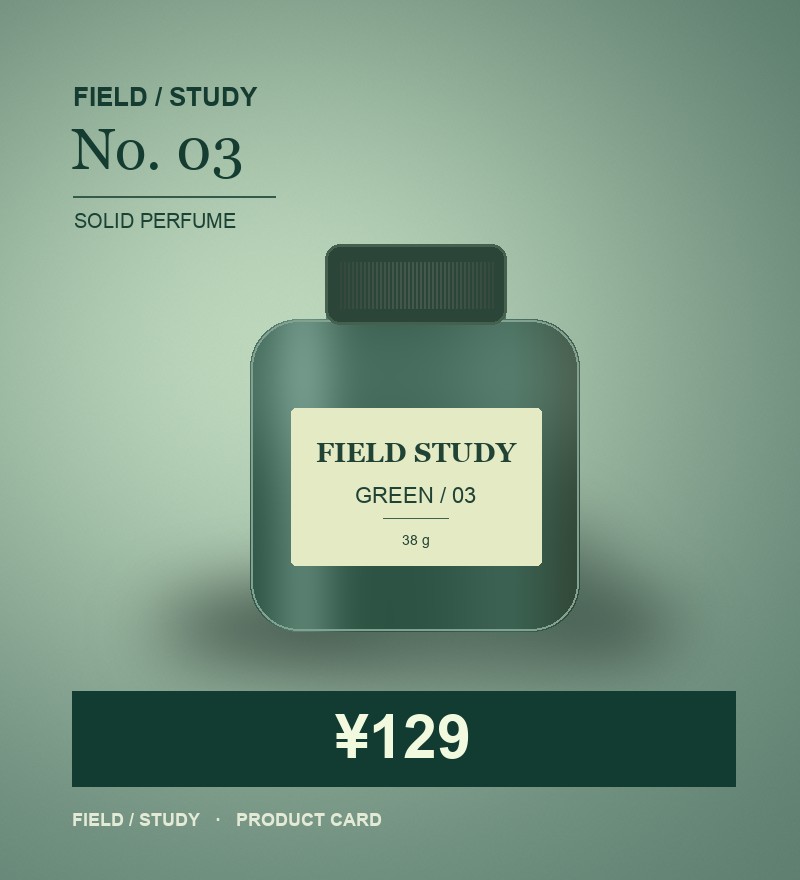
| SKU | New price |
|---|---|
00123 | 89 |
00456 | 99 |
Images and preview
Your files stay on this device. Privacy
No images selected.
Before
After
Two sample images and their Excel prices are loaded. Switch images to compare each price before and after.
Review prices before processing
All selected images passed the batch review.
| Filename | SKU | New price | Status |
|---|
Settings
Results
Quick start for the price editor
Import images and your price sheet
Add your images and import Excel or CSV. Select the worksheet, header row, filename or SKU column, and new price column.
Select the old price area
Use one region for images with the same layout or mark each image separately. Toggle Show original to compare before and after.
Review matches and export
Filter the batch review to see which images need attention. Check the prices, then export PNG, JPG, or WebP, or download the review as a CSV.
How are images matched by SKU?
For SKU 00123, name the image 00123.jpg and keep the leading zeros in the sheet. Use the multiple-images SKU mode for front, back, or detail shots. The review still flags duplicate price rows for a SKU.
What if the old price is over a patterned background?
The editor covers the selection with a solid color and draws the new price on top. Sampling works on solid labels. For patterns or gradients, try a tighter selection and a matching fill color.